
The CrawlWP SEO email report turns your site’s search and indexing data into a summary you can read without opening WordPress.
This article walks through the report, from its delivery schedule and Google search figures to ranking tables, indexing counts, and recent changes.
Email reports are available in CrawlWP Premium. For setup instructions, see SEO Performance Reports via Email – Setup Guide.
Check when an email should arrive
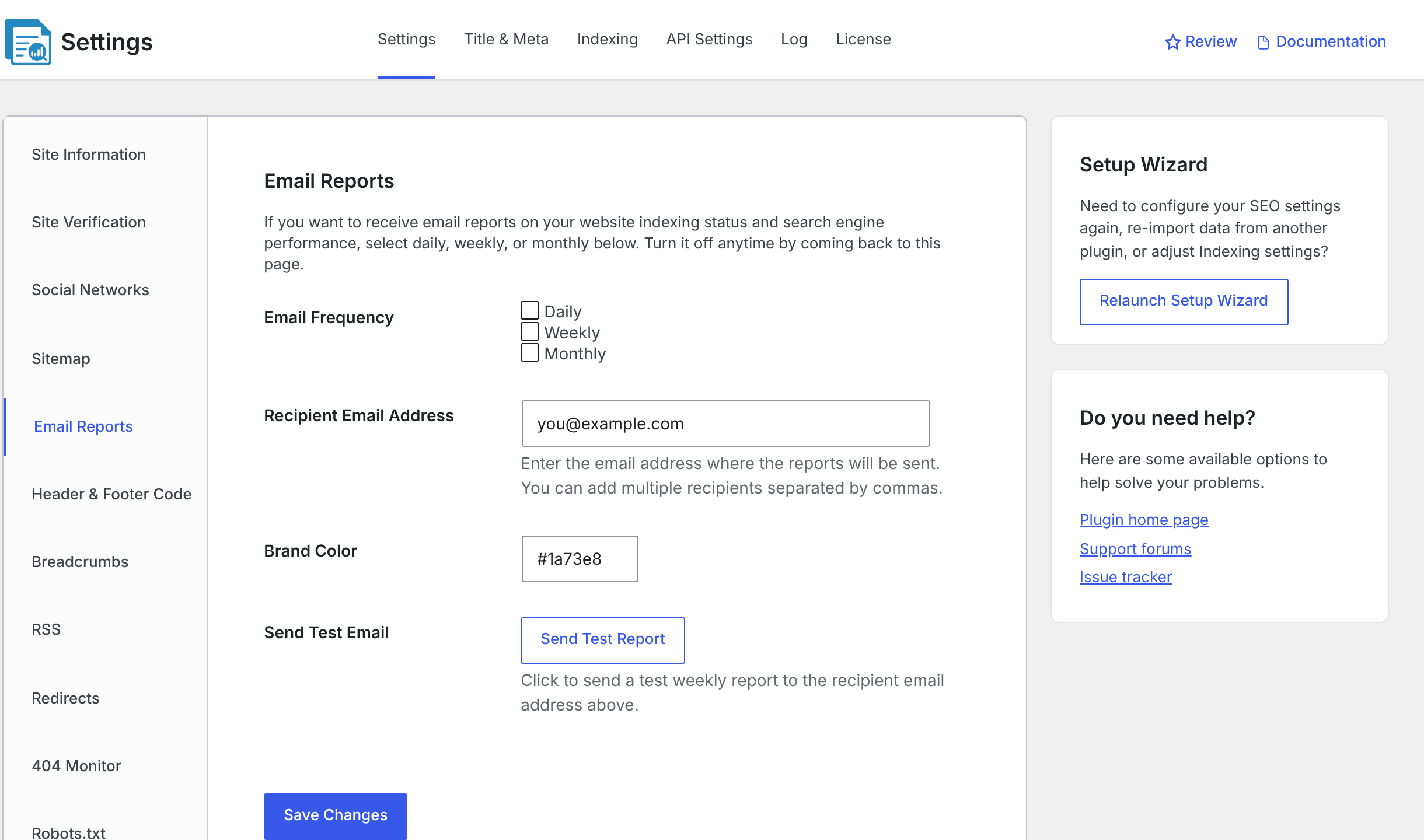
CrawlWP sends reports between 8 am and midday according to your site’s time zone, with no more than one report sent on a single day.
| Frequency | Delivery | Data covered |
|---|---|---|
| Daily | Every day | Yesterday |
| Weekly | Every Monday | The previous Monday through Sunday |
| Monthly | On the 1st of the month | The previous calendar month |
When more than one frequency is enabled, CrawlWP sends the larger report when schedules overlap. The monthly report takes priority on the 1st, and the weekly report takes priority on Mondays, so CrawlWP doesn’t send a daily report on those overlapping days.
A typical subject line looks like “[CrawlWP] Weekly SEO Report – example.com”.
Delivery depends on WordPress scheduled tasks, which normally run when your site receives visitors.
If no scheduled task runs between 8 am and midday, it skips that report. If a weekly or monthly report is missed, it isn’t sent later. For scheduled-task problems, see How to fix cron events missing their schedules.
What you will see inside the report
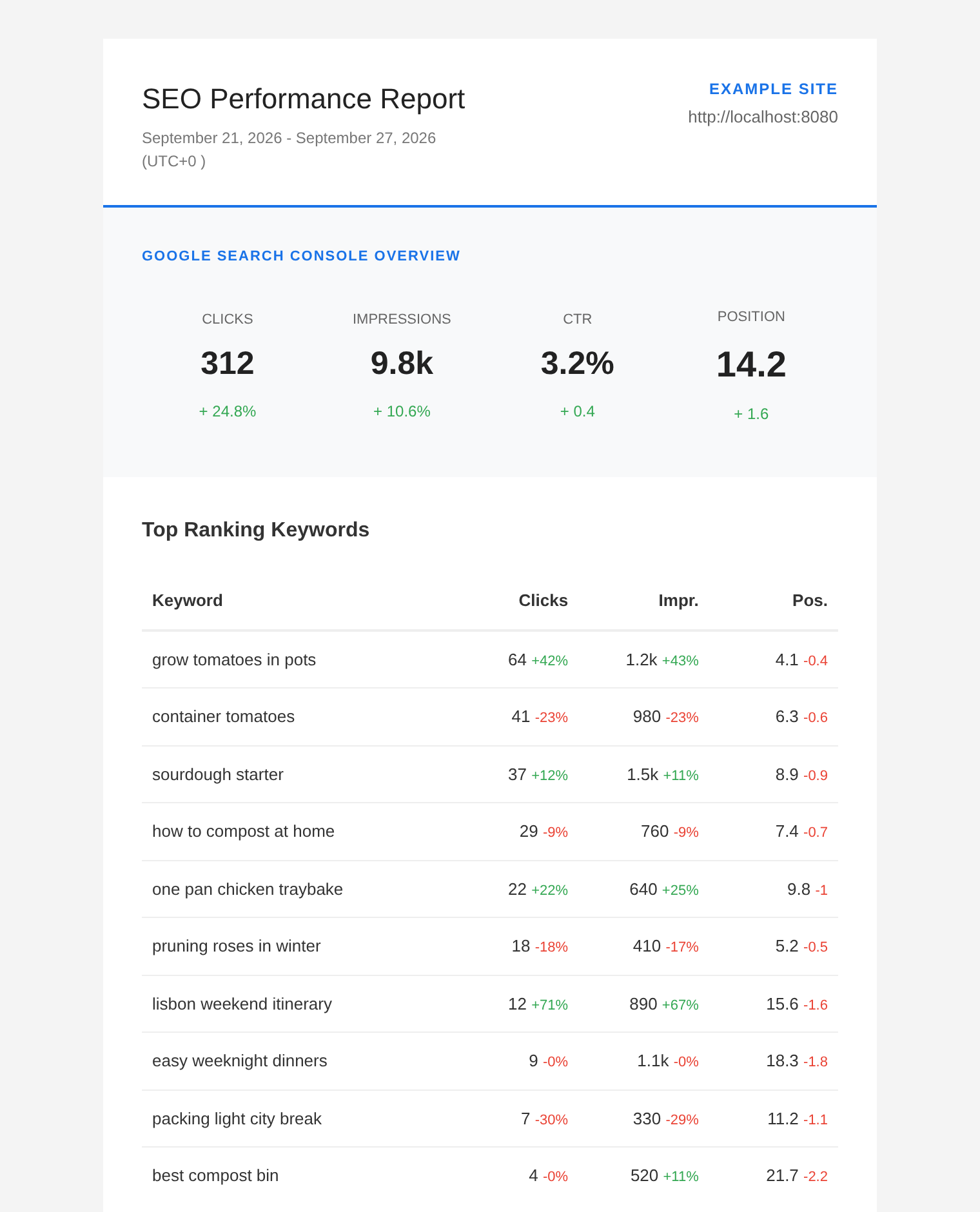
Report Header
The header identifies the email as an SEO Performance Report and gives the reporting period, your site’s UTC offset, site name, and site address.
Google Search Console Overview
This is the main search-performance summary. It reports your site’s Google search totals for the period covered by the email.
| Figure | What it means |
|---|---|
| Clicks | The number of clicks from Google search results to your site |
| Impressions | The number of times your site appeared in Google search results |
| CTR | Clicks divided by impressions, expressed as a percentage |
| Position | Your site’s average position in the search results; lower is better |
Each figure also compares the current period with the previous period of the same length. For example, the comparison on a weekly report is against the week immediately before it.
- Clicks and Impressions use percentages for their changes.
- CTR uses percentage points. A change of “+ 0.4” means the CTR moved from 2.8% to 3.2%.
- Position uses places. A green “+ 1.6” means the average position improved by 1.6 places.
The color and sign give a quick indication of movement: green with a plus represents an improvement, while red with a minus represents a drop. A few comparison states can look unusual because of how the values are calculated.
- Clicks and Impressions can show a red “- 0%s no change or when there is no earlier data.
- CTR and Position show a red “- 0” when there is no change.
- When there is no earlier data, CTR and Position use the entire current value as the change.
Top Ranking Keywords
This section contains the 10 search terms that generated the most clicks during the report period. Each row includes Clicks, Impr. and Pos., along with a small comparison against the previous period.
Pay particular attention to Pos. here because its comparison sign works differently from the overview. A green “+” means the position number increased, which represents a worse ranking. A red “-” means the keyword moved higher in the results. A red “-0%” or “-0.0” indicates no change.
Top Ranking Pages
The next table lists the 10 pages that received the most clicks. It uses the same columns as the keyword table, and each entry includes the page title and its address.
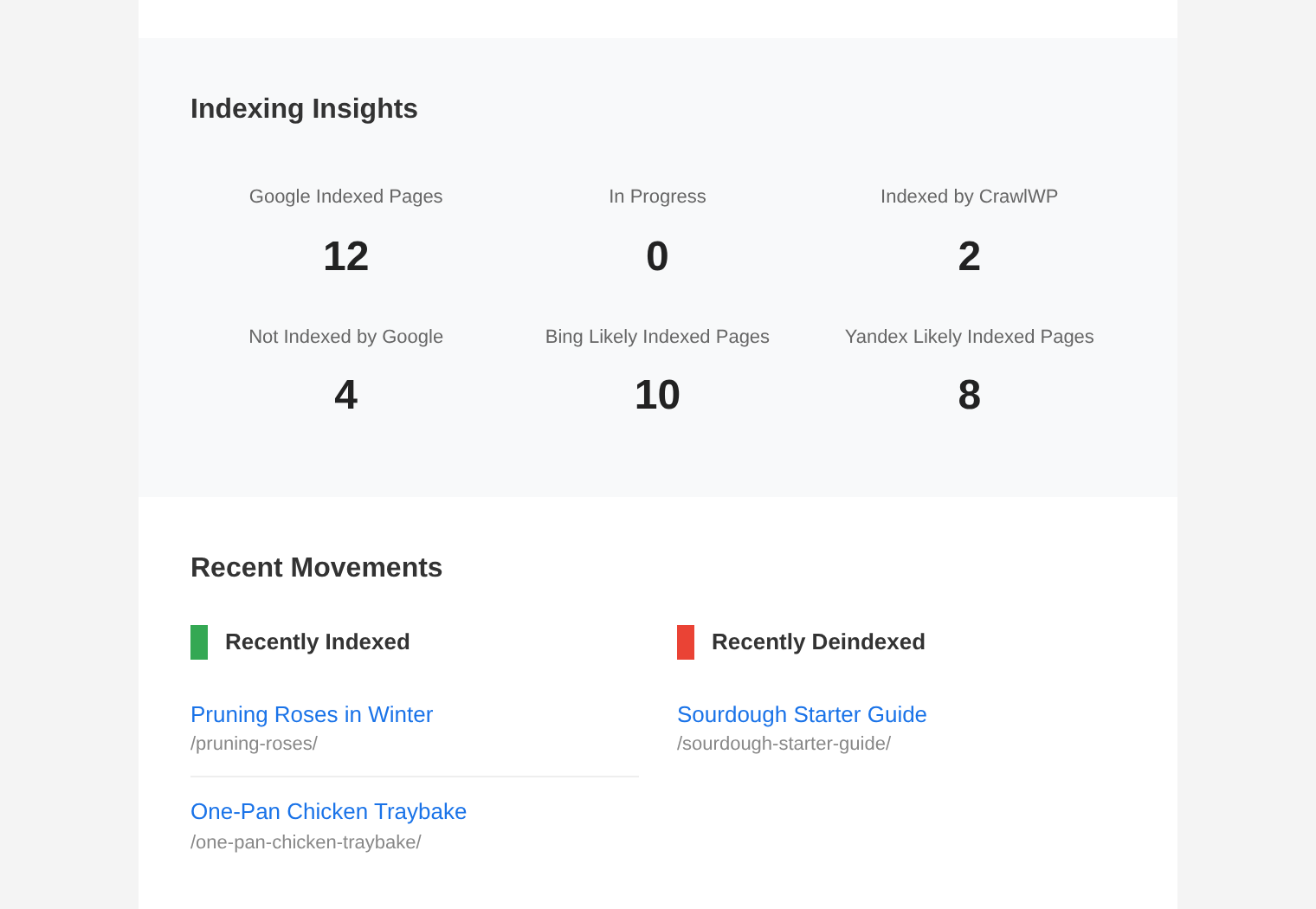
Indexing Insights
Indexing Insights comes from the SEO Indexing page. Unlike the search figures above, these numbers are site-wide totals at the moment the report is generated, not measurements for the report period.
| Figure | What it counts |
|---|---|
| Google Indexed Pages | Pages that Google reports as indexed |
| In Progress | Pages submitted to Google that are waiting for their next index check |
| Indexed by CrawlWP | Pages that became indexed after CrawlWP began tracking them |
| Not Indexed by Google | Pages that Google reports as not indexed |
| Bing Likely Indexed Pages | Pages that are likely indexed in Bing |
| Yandex Likely Indexed Pages | Pages that are likely indexed in Yandex |
For an explanation of the indexing labels, including the “Likely Indexed” statuses, see Understanding index statuses, including Likely Indexed.
Recent Movements
This section highlights pages that changed their Google index status during the report period.
- Recently Indexed contains up to 10 pages that Google began indexing during the period.
- Recently Deindexed contains up to 10 pages that left Google’s index during the period.
When there are no matching pages, the report displays “No recently indexed pages” or “No recently deindexed pages”.
View Complete Analysis
The View Complete Analysis button takes you to your site’s SEO Stats page. It opens the last 28 days rather than the period covered by the email, and you must be logged in to view the page.
For a detailed guide to that dashboard, see Reading the SEO Stats dashboard.
The link at the bottom of the email takes you back to the email report settings.
What is not in the email
The email is narrower than the full SEO Stats dashboard, so some data is available only there.
- Search-performance figures from Bing and Yandex are not included. Their index counts are included.
- Country and device breakdowns are not included. Use the SEO Stats page for those.
Troubleshoot missing or incomplete reports
I do not receive the report. Make sure at least one Email Frequency option is selected and that Recipient Email Address contains the correct address. You can click Send Test Report to send last week’s report immediately. If it does not arrive, check the spam folder and then verify that your site can send email. Many hosts require an SMTP plugin for more reliable delivery.
The Google figures are all 0. Check the Google connection under CrawlWP > Settings > API Settings. CrawlWP still sends the report without a Google API connection, but the email will contain no Google search data.
The daily report contains unusually low figures. A daily report uses yesterday’s data, and Google may not have finished processing all of it when the email is generated. Weekly and monthly reports generally provide a more complete picture.
I need to send the report to several people. Enter multiple addresses in Recipient Email Address and separate them with commas.
Use the report as a recurring SEO check
The email works best as a quick recurring snapshot of your site’s search activity and indexing. Start with the Google overview, look for important changes in the top keywords and pages, then check Indexing Insights and Recent Movements. When you need to investigate further, use View Complete Analysis to continue in SEO Stats.