
CrawlWP’s content analysis helps you review the on-page SEO of a post or page before publishing it.
It checks elements such as the SEO title, meta description, content, images, links, and focus keywords, then gives the content an SEO score out of 100. The General tab also includes a readability score.
The scores are best used as a checklist rather than a prediction of search rankings. A score of 100 does not guarantee that a page will rank, and a lower score does not prevent it from ranking. Use the recommendations to identify useful improvements, then make the final decisions based on the quality and purpose of the content.
Run the Content Analysis
- Open the post or page in the WordPress editor.
- In the CrawlWP SEO box below the content, click the Analysis tab.
- In Focus keywords, enter the search phrase you want the page to target. See Setting a focus keyword.
The analysis appears below the keyword field and updates as you edit the content. You do not need to save the post before reviewing the checklist.
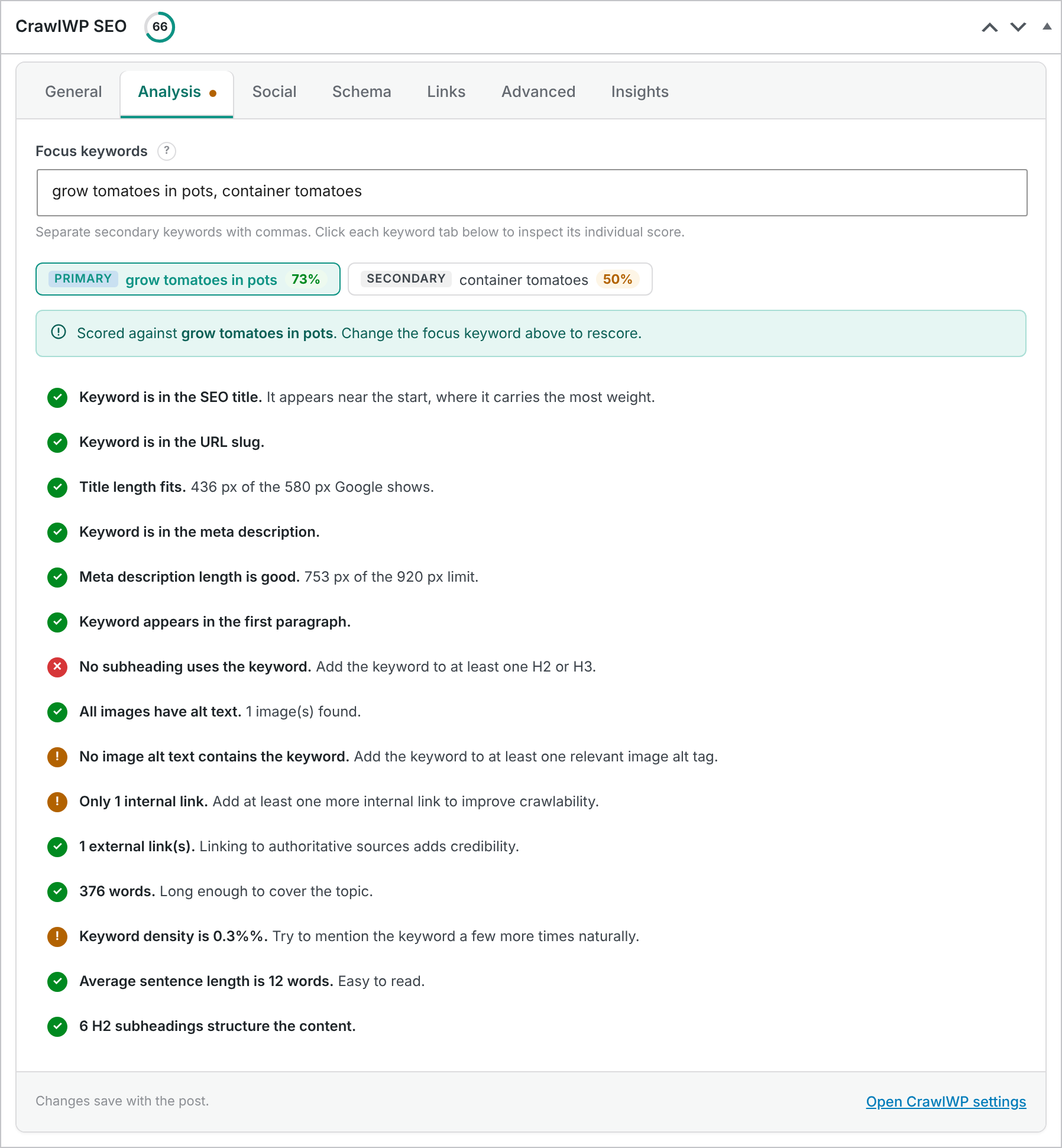
Each check has one of three main statuses:
- Green tick: the check passed.
- Orange exclamation mark: the check needs attention.
- Red cross: the check identifies a problem.
For a detailed explanation of the individual checks and what to do about them, see What each SEO score check means.
An orange dot beside the Analysis tab means that at least one check for the selected keyword has not passed. Hover over the dot to see how many checks need attention.
Understanding the CrawlWP SEO Score
The SEO score appears in a ring beside CrawlWP SEO at the top of the SEO box.
The score is the percentage of checks that passed. Checks marked as needing attention count as not passed, just like checks marked as problems.
When you use more than one focus keyword, CrawlWP gives the primary keyword 70% of the score and the average score of the secondary keywords the remaining 30%. For example, a primary keyword score of 73% and a secondary keyword score of 50% produces an overall score of 66%.
When no focus keyword has been entered, the score ring shows a dash and the keyword-based checks do not run.
Review the Readability Score
Readability is separate from the keyword analysis. Open the General tab, and you will find the readability box below the meta description. You can use it even when no focus keyword has been entered.
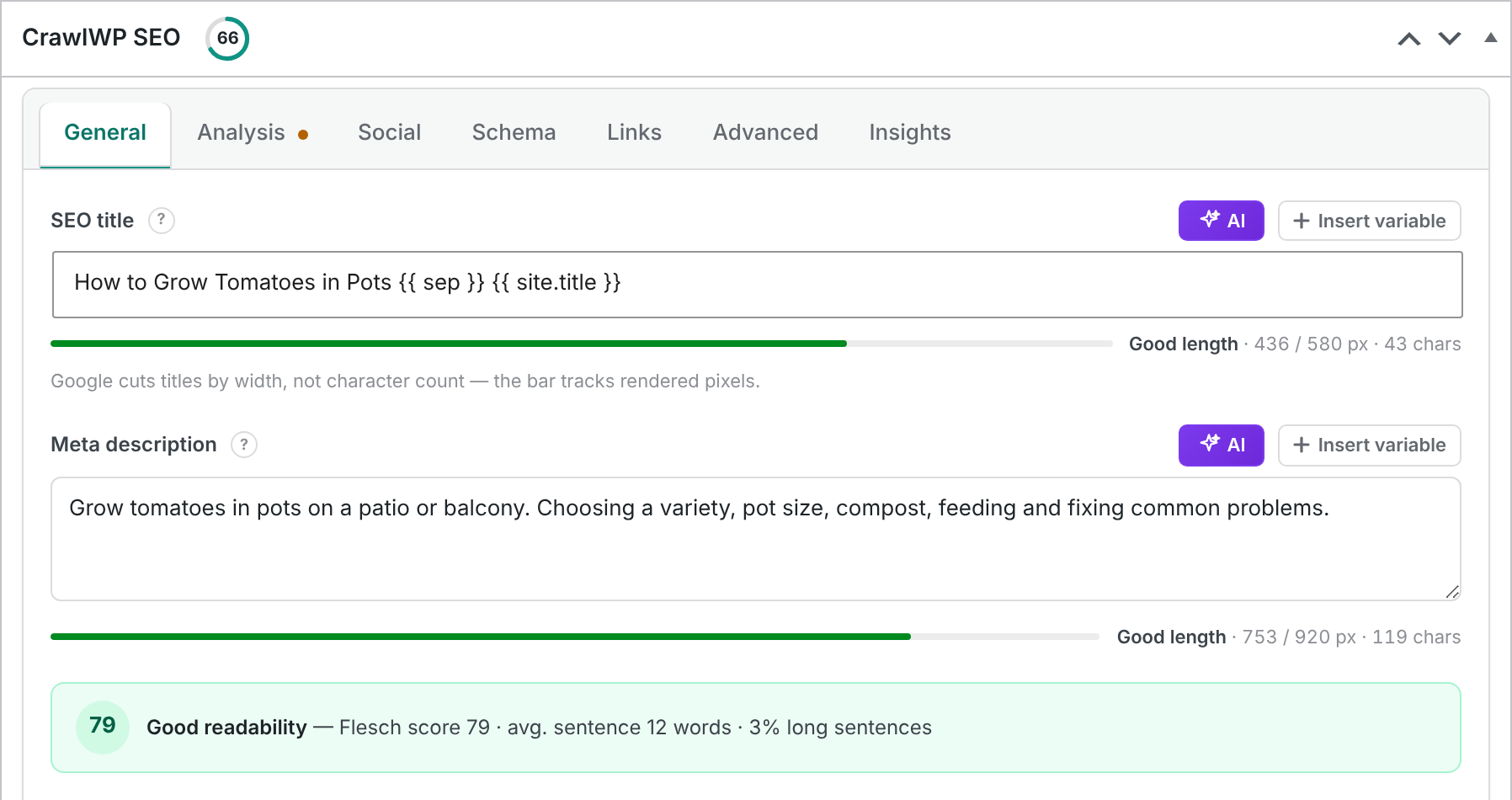
CrawlWP uses the Flesch reading ease formula and displays a score from 0 to 100. Higher scores indicate text that is generally easier to read. The box also reports the average sentence length and the percentage of sentences containing more than 20 words.
| Flesch score | Label |
|---|---|
| 60 or more | Good readability |
| 40 to 59 | Fairly readable |
| Under 40 | Needs improvement |
The readability calculation is based mainly on sentence length and syllables per word and is designed for English-language text.
For very short content, there may not be enough text to calculate the score. When a post contains fewer than 50 words, CrawlWP displays Readability analysis will run when content is available.
Save the SEO Score
After reviewing the analysis, update or publish the post. CrawlWP stores the score generated by the editor so it can be displayed later in the WordPress posts list.
This stored score is important because the SEO column in the posts list uses the saved result rather than continuously recalculating the complete analysis.
View SEO Scores in the Posts List
Go to Posts > All Posts. The SEO column next to the post title displays a score bar and a series of quick status letters. The same column can appear for pages and other public post types.
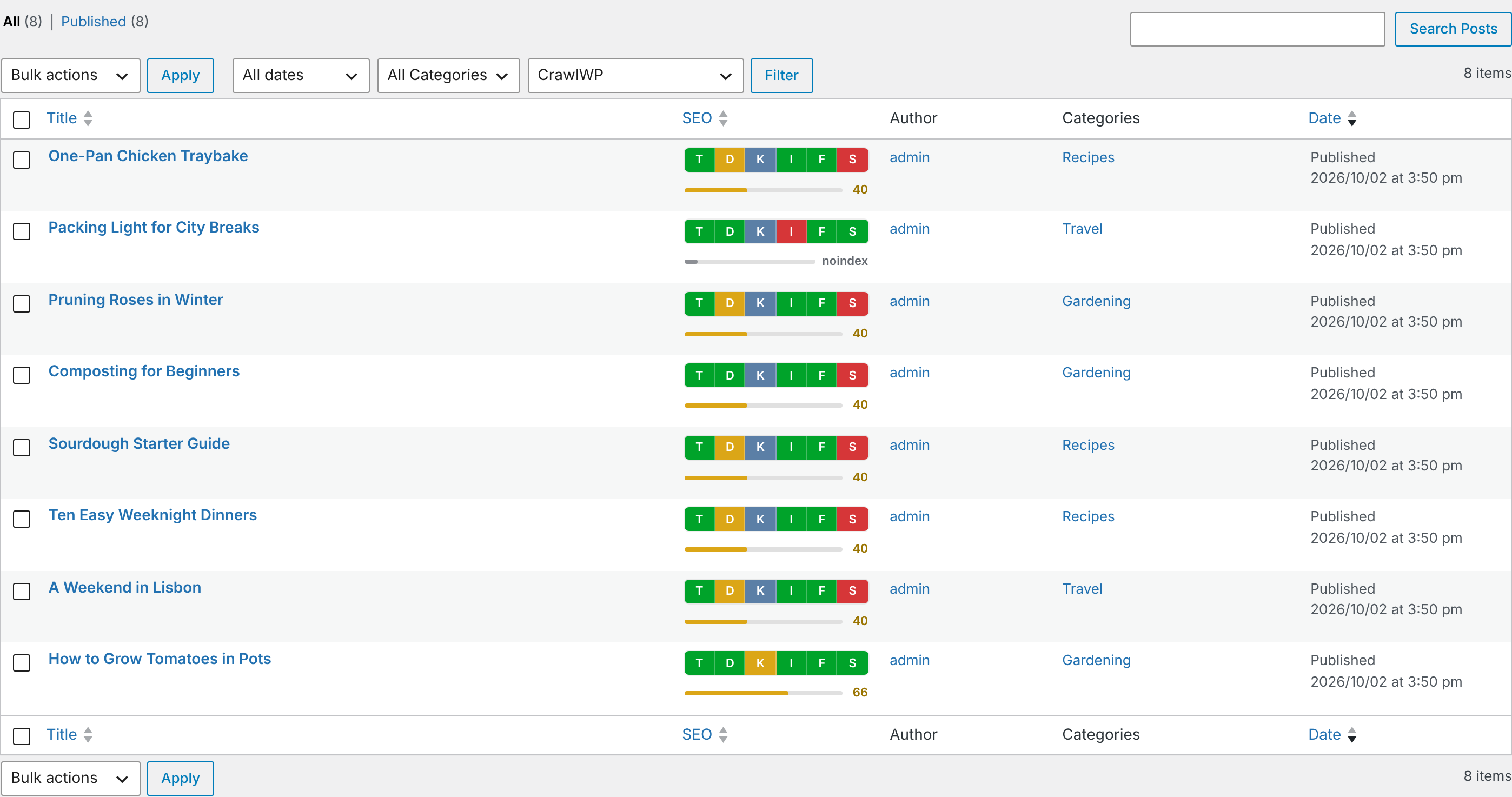
The score bar uses these ranges:
| Score | Label | Colour |
|---|---|---|
| 70 or more | Good | Green |
| 40 to 69 | OK | Orange |
| Under 40 | Poor | Red |
When an individual post is set to noindex from its Advanced tab, the score bar displays noindex instead of a number. When the post is noindex because its post type is hidden through Title & Meta, the column still displays a score and the I signal is red.
Hover over the score to see its tooltip. The same tooltip is used when the displayed number is an estimate rather than a full stored analysis score.

Posts Without a Stored SEO Score
A complete stored score is created when a post is saved from the editor with a focus keyword. Certain actions performed outside the editor can remove the stored score. These include Quick Edit, bulk editing, imports, and a scheduled post being published automatically.
When no stored score is available, CrawlWP displays an estimate instead. The estimate only considers the SEO title, meta description, focus keyword, and noindex status.
- SEO title: 40% of the estimate. An empty title receives half marks because CrawlWP can use the corresponding template from Title & Meta.
- Meta description: 40% of the estimate. An empty description also receives half marks because a template may be used.
- Focus keyword: 20% of the estimate.
- Noindex: a post that is set to noindex receives an estimate of 10.
This is why many posts can initially show a score of 40 even though their full content has not been analyzed. Open the post, enter a focus keyword, and update it from the editor to replace the estimate with the full analysis score.
You can sort the list by clicking the SEO column heading. Click it once to sort from the lowest score to the highest, and again to reverse the order. Posts without stored scores are grouped as though they have the lowest score, regardless of the estimate displayed in the bar.
Understand the SEO Signal Letters
The letters beside each score provide a quick overview of important SEO checks. Hover over a letter to see its explanation.

| Letter | Signal | What it checks |
|---|---|---|
| T | Title | The length of the SEO title that will be output, including titles generated from a template. |
| D | Description | The length of the meta description that will be output, including descriptions generated from a template or from the excerpt. |
| K | Keyword | Whether the primary keyword appears in the title, URL slug, and content, as well as how many secondary keywords appear in the content. |
| I | Indexing | Whether search engines can index the post. It is red for noindex on the post or from its post type setting, or when Discourage search engines from indexing this site is enabled. It is orange for a redirect, a canonical URL pointing elsewhere, or password protection. The signal does not apply until the post is published. |
| F | Following | Whether the post’s robots settings allow search engines to follow its links. It is orange when nofollow is enabled. The tooltip also lists other robots directives. It does not inspect individual links. |
| S | Social | The image selected for social sharing. Green indicates a custom social image or featured image, orange indicates a fallback image or an image smaller than 1200 × 630 pixels, and red means no social image is available. |
The signal letters are calculated when the post is saved, so they do not change immediately as you type in the editor. Green means the check is good, orange means it needs attention, red indicates a problem, and blue-grey means the check does not apply. For example, the K signal is grey when no focus keyword has been assigned.
The T and D signals use character counts, with 30 to 60 characters considered the target range for titles and 50 to 160 characters for descriptions. The editor’s live analysis uses pixel width instead, so the two checks can occasionally disagree, especially when text contains many unusually wide or narrow characters.
Edit SEO Titles and Descriptions From the Posts List
- Hover over the post and click Quick Edit.
- Under CrawlWP SEO, edit the SEO Title or Meta Description.
- Click Update.
Quick Edit is useful for making fast metadata changes, but it does not run the full content analysis. Saving the post through Quick Edit removes the stored SEO score, so the posts list will show the estimate until you open and update the post again from the editor.
A Practical Way to Use the Analysis
Start by choosing a focus keyword that accurately describes the page. Review the Analysis tab for obvious issues with the title, description, keyword usage, links, and other on-page elements.
Next, review the General tab and look at readability. Long sentences or dense wording can be useful signals that a section needs to be clearer, especially on instructional or educational pages.
Finally, do not optimize for the score alone. A green check is useful only when the underlying change improves the page. If forcing an exact keyword into a heading or rewriting a sentence makes the content less natural, the better choice may be to leave that particular check unresolved.
Troubleshooting the Content Analysis
The checklist does not appear
Make sure you are on the Analysis tab and have entered a value in Focus keywords. The keyword-based checks do not run when the field is empty.
The score in the posts list is different from the editor
The post may have been saved outside the editor since the last full analysis. Quick Edit, bulk editing, imports, and automatic publication of scheduled posts can remove the stored score. Open the post in the editor, make sure a focus keyword is present, and click Update.
The CrawlWP SEO box is missing
In the block editor, open the Options menu using the three dots, then go to Preferences > General. Under Advanced, make sure the CrawlWP SEO meta box is enabled. Also check the bottom of the editor in case the box has been collapsed.
The SEO column is missing from the posts list
Open Screen Options at the top of the posts list and make sure SEO is selected.
The readability score is not available
Check the amount of text in the post. CrawlWP needs at least 50 words before it can run the readability analysis.
A score looks lower than expected
Open the Analysis tab and review the individual checks rather than focusing only on the number.
Remember that orange checks count as not passed when the score is calculated, so a small number of unresolved warnings can lower the overall score.
CrawlWP‘s SEO score is most useful when you treat it as a final review tool before publishing.
Work through the checks that represent real opportunities, confirm your SEO settings match your intentions, and keep the reader’s experience at the center of the editing process.