
You changed robots.txt in CrawlWP, saved it, and the URL still shows something different. In most cases, CrawlWP isn’t serving the response you’re seeing for your WordPress site. A physical file, cached response, or a different site root can get there first.
Start by checking the actual robots.txt URL
Open https://your-site.com/robots.txt directly in a private browser window. This tells you what is currently being returned to visitors instead of what you expect CrawlWP to return.
When testing, you can also open /robots.txt?check=1. The query string can help you tell whether a cache is serving an older response. If the content changes, caching is a strong suspect.
The first thing to rule out: a physical robots.txt file
WordPress normally generates robots.txt dynamically rather than relying on a file in the site’s root directory. A real file named robots.txt takes precedence, so the web server can return that file without giving WordPress or CrawlWP a chance to handle the request.
CrawlWP reports this on its Robots.txt screen. To check it, open CrawlWP > Settings, select the Settings tab, and choose Robots.txt from the left-hand menu.
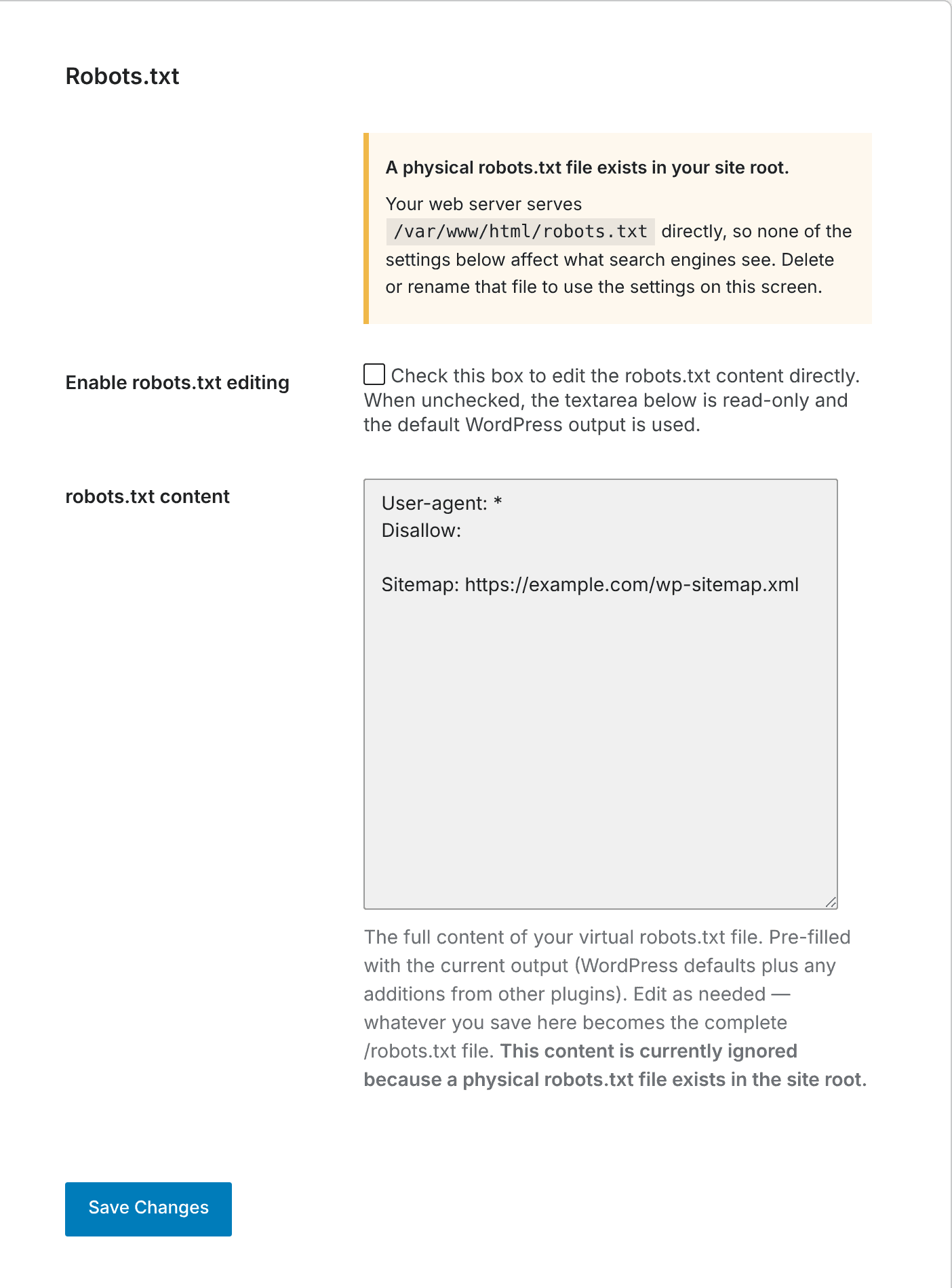
Look for the message A physical robots.txt file exists in your site root. CrawlWP’s notification area, shown by the bell icon in the admin bar, may also display a warning.
Remove the file before testing CrawlWP again
If a physical file is present, copy its contents first when you need to preserve any rules. Then use your hosting file manager or an FTP program to remove it, or rename it to something such as robots-old.txt.
After that, put any rules you still need into CrawlWP’s robots.txt content field, turn on Enable robots.txt editing, and click Save Changes. Reopen https://your-site.com/robots.txt and compare the result.
Some WordPress hosting environments or other SEO plugins can recreate a physical file. When it returns after you remove it, check your hosting control panel and your other SEO plugins for a robots.txt feature.
Make sure CrawlWP is actually supplying the saved content
CrawlWP uses the settings saved in its Robots.txt section. An empty saved box does not give you a custom ruleset; it allows the WordPress-generated version to be used instead.
- Go to CrawlWP > Settings > Robots.txt.
- Check Enable robots.txt editing.
- Review the robots.txt content box.
- Click Save Changes.
For the full configuration walkthrough, see Editing robots.txt.
Check for caching between CrawlWP and your browser
A correct CrawlWP setting can still appear unchanged when another layer has cached the older response. This can happen at the hosting level, in a caching plugin, or through a CDN such as Cloudflare.
Clear the relevant caches and then test the URL again in a private window. Checking /robots.txt?check=1 can also help distinguish a newly generated response from a cached one.
Confirm that you are editing the site’s real domain root
Search engines read robots.txt from the root of a domain. For a site at https://example.com, the expected location is https://example.com/robots.txt.
This matters when WordPress itself is installed or configured under a folder.
- When Settings > General uses an address such as
https://example.com/blog, WordPress does not answer/robots.txtat that domain root. The root-level robots.txt comes from whatever is installed there. - On a WordPress Multisite network that uses subfolders, only the main site’s robots.txt is used. See Using CrawlWP on WordPress Multisite.
Separate a CrawlWP problem from a search engine refresh
Seeing the old rules in Google does not necessarily mean the robots.txt URL is still serving the old rules. Search engines can continue using a version they fetched earlier even after your site has been changed.
Google usually fetches robots.txt again within a day. In Google Search Console, the robots.txt report under Settings shows the version Google last fetched and lets you ask Google to fetch it again.
Common robots.txt surprises after saving
Turning off Enable robots.txt editing did not restore the default file. CrawlWP keeps using the content that was saved in the section. To return to the WordPress-generated version, turn Enable robots.txt editing on, empty robots.txt content, and click Save Changes.
The Sitemap line is missing. WordPress normally adds its Sitemap: line to the generated robots.txt. CrawlWP’s saved content replaces that generated content, so include the sitemap line yourself when needed, for example Sitemap: https://your-site.com/wp-sitemap.xml.
The wp-admin rules are missing. CrawlWP’s starting robots.txt content does not include WordPress’s usual admin rules. Add them explicitly when you need them:
Disallow: /wp-admin/
Allow: /wp-admin/admin-ajax.php
Encoded characters such as %20 disappear after saving. CrawlWP removes encoded characters when it saves the robots.txt content. Use a wildcard such as * instead where appropriate.
CrawlWP says robots.txt is blocking all search crawlers. This warning appears when your robots.txt, or a physical robots.txt file, contains Disallow: / under User-agent: *. It can happen when Discourage search engines from indexing this site was enabled while the Robots.txt screen was opened, because the box is then populated with that rule.
Remove Disallow: / when you do not intend to block every crawler. When the rule is coming from a physical file, CrawlWP’s warning can take up to 12 hours to clear after the file is fixed.
A reliable order for troubleshooting
When a change appears to have no effect, work from the server response outward: first check /robots.txt, then rule out a physical file, confirm CrawlWP’s saved settings, clear caching, verify the domain root, and only then check what a search engine has fetched.
This order helps distinguish a site-side problem from a delayed search engine refresh. Once https://your-site.com/robots.txt shows the intended content, any remaining difference in Search Console is about Google’s last fetched copy rather than the CrawlWP setting itself.