
When a title you entered in CrawlWP does not appear in Google, the problem is usually one of three things: your page is not outputting the title you expect, another component is overriding it, or Google has not recrawled the page yet. Work through the checks below in order to find where the mismatch occurs.
1. Check the title your page actually outputs
Start with the live page rather than Google. Google can only see a title that your page sends in its HTML.
- Open the page in a private or incognito browser window so you are seeing the front end as a visitor would.
- Right-click the page and choose View Page Source.
- Search the source for
<title>.
If the <title> is the value you entered in CrawlWP, CrawlWP is outputting the title correctly. Move on to the section about giving Google time to recrawl the page.
If the source contains a WordPress or theme-generated title instead, search the source for CrawlWP SEO. Most CrawlWP SEO output appears between <!-- CrawlWP SEO and <!-- /CrawlWP SEO -->. If those comments are missing, continue to the next check. If they are present, check for a theme or plugin conflict.
Another SEO plugin can also replace CrawlWP’s title without creating a second <title> tag. See Duplicate meta tags after switching plugins.
2. Make sure CrawlWP’s SEO features are enabled
If CrawlWP was originally installed for indexing and its on-page SEO features were never enabled, it will not output your SEO title, meta description, social tags, or schema.
- Go to CrawlWP > Settings.
- If an SEO Features tab appears at the top, open it. If the tab is not present, the features are already enabled.
- Tick Enable all on-page SEO features on this website.
- Click Save Changes.
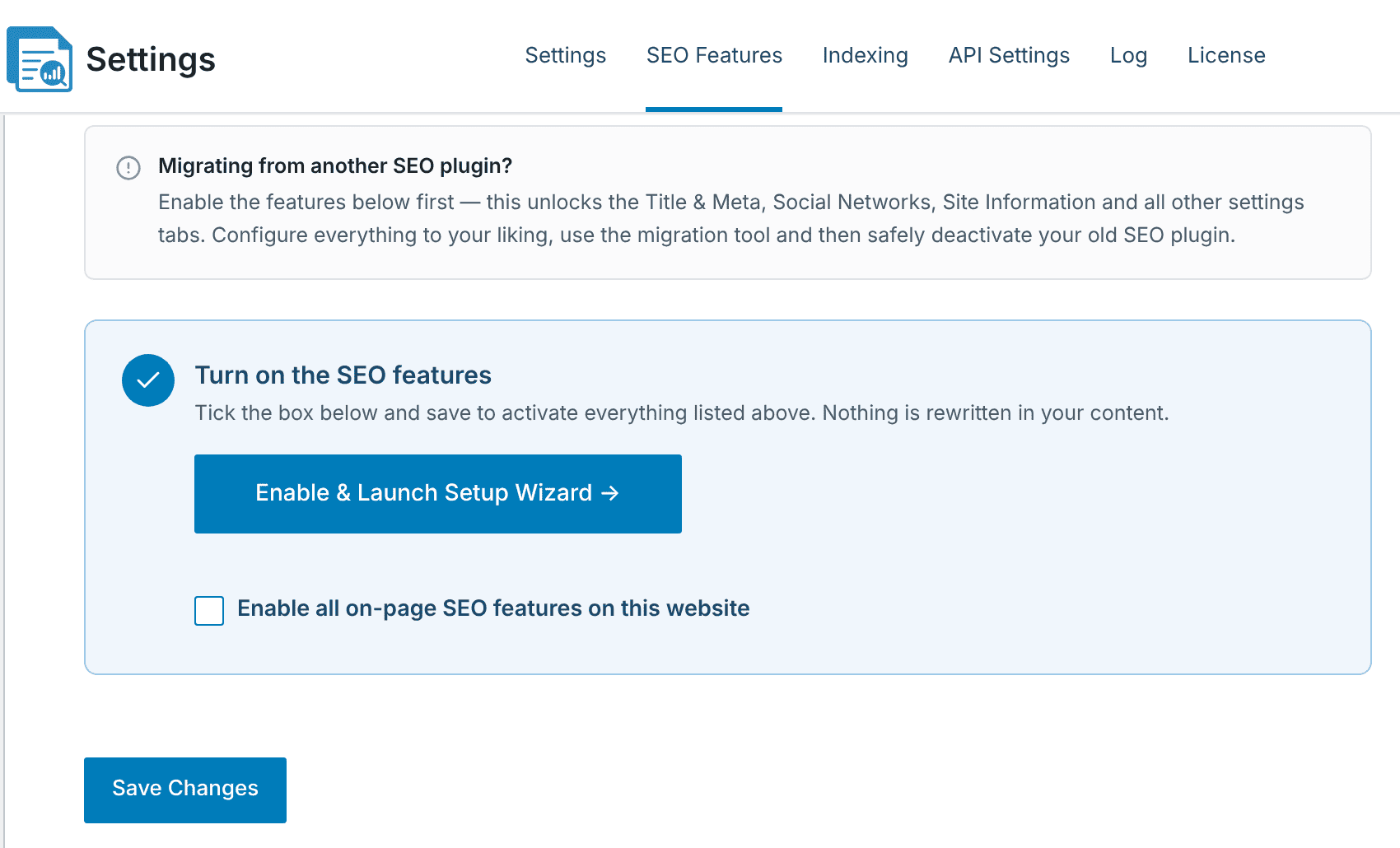
You can also choose Enable & Launch Setup Wizard to turn the features on and go through the setup process.
When moving from another SEO plugin, import its supported titles and descriptions into CrawlWP before disabling the old plugin. See What gets imported and what doesn’t.
3. Rule out caching and competing title tags
After changing an SEO title, the HTML you are looking at may still be an older cached version. Clear the cache from your caching plugin, hosting provider, and CDN, then inspect the page source again.
Check for more than one title tag. Search the source for <title and count the results. If there are two, your theme may be outputting its own title in addition to the title WordPress manages through CrawlWP.
For older themes that do not let WordPress manage the title correctly, CrawlWP can print its own <title> between the CrawlWP comments while the theme prints another one. Ask the theme developer to let WordPress manage the title, or use a theme that does.
Check whether CrawlWP is using a template. Open the post and look at the SEO title field in the CrawlWP SEO box. When the field is empty, CrawlWP uses the relevant template from Title & Meta. See Setting your SEO title and meta description for a post or page.
4. Treat the homepage as a separate case
The homepage has its own settings depending on how the site is configured.
- If the homepage displays your latest posts, set its title under CrawlWP > Settings > Title & Meta > Homepage.
- If the homepage is a static page, set the title in that page’s CrawlWP SEO box.
When the homepage is a static page and its SEO title is empty, CrawlWP shows a warning in its notifications. Click the bell icon in the admin bar to view it.
See Setting up your homepage title and meta description.
5. Let Google recrawl the page
Even after your page sends the correct title, Google may keep showing an older title until it crawls the page again. This can take days or weeks.
You can request another crawl with either of these methods:
- In Google Search Console, open URL Inspection for the page and click Request Indexing.
- When the Google API is connected to CrawlWP, open the post’s CrawlWP SEO box, go to the Advanced tab, and click Submit for Indexing. Check the Log tab for the result. See Indexing submissions are failing: how to read the error.
The URL Inspection tool can also tell you whether the page is indexed at all. A page that is set to noindex will not appear in Google’s index. See Noindex, nofollow and other robots directives per post.
6. Remember that Google can rewrite your title
Even when the correct title appears in your page source, Google may show different wording in search results. Google treats the page title as a signal rather than a guarantee of the exact text it will display.
Rewrites are more likely when a title:
- is very long and is likely to be cut off;
- repeats words or appears overly focused on keywords;
- does not accurately describe the page;
- is duplicated across many pages on your site.
Use a concise title that accurately describes the page and is reasonably consistent with its main heading. There is no setting in CrawlWP that prevents Google from rewriting a title.
Troubleshoot specific cases
The page source contains CrawlWP’s title, but Google has shown the old title for weeks. Inspect the page in Google’s URL Inspection tool. If Google’s stored version is old, click Request Indexing. If Google’s copy contains the new title but the search result does not, Google has chosen to rewrite it.
The CrawlWP comments are present, but I cannot find a title between them. This can be normal. On most themes, WordPress outputs the <title> elsewhere in the document using the title supplied by CrawlWP. Search the source for <title> rather than expecting it to sit between the CrawlWP comments.
Only some pages ignore the titles I set. Open an affected post and check its SEO title in the CrawlWP SEO box. Then check the corresponding template under Title & Meta. See Search appearance settings for posts, pages, and custom post types.
Use the source to pinpoint the problem
The simplest diagnosis is to compare what CrawlWP outputs with what Google displays. If the live source contains the title you want, CrawlWP is doing its job and you should focus on caching, recrawling, indexing, or Google’s title rewrite.
If the live source does not contain the title you entered, stay in WordPress and check the SEO feature switch, the post’s CrawlWP SEO settings, templates, and any competing theme or SEO-plugin output before asking Google to recrawl the page.