
When you move, rename, or remove a page in WordPress, its old URL can become a dead end for anyone who follows an existing link. CrawlWP lets you create a WordPress redirect rule so visitors and search engines go to the right destination instead of a missing page.
Creating a redirect rule in WordPress
- Open your WordPress dashboard and navigate to CrawlWP > Settings.
- Click the Settings tab if it is not already selected, then choose Redirects from the menu on the left.
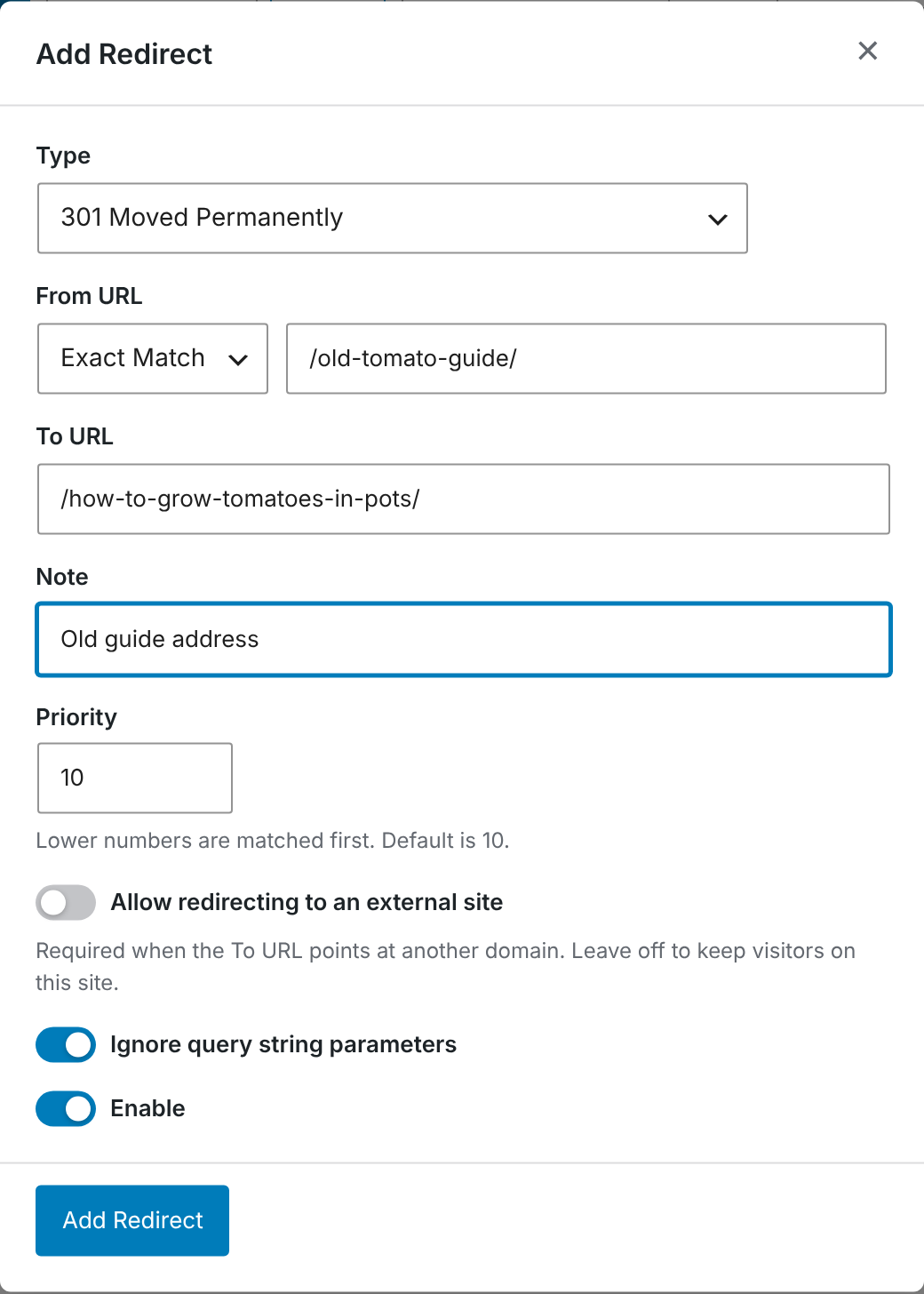
- Select Add Redirect.
- Pick the appropriate Type. The options are explained below.
- For From URL, keep Exact Match selected and enter the old URL, such as
/old-tomato-guide/. You can use either a path or a complete URL belonging to your own site. - Enter the destination in To URL, such as
/how-to-grow-tomatoes-in-pots/. If the destination is on a different domain, enter the complete URL beginning withhttps://. Without the protocol, CrawlWP treats it as a path on your own website. - Add a Note when you want to record why the rule was created.
- Click Add Redirect to save it.
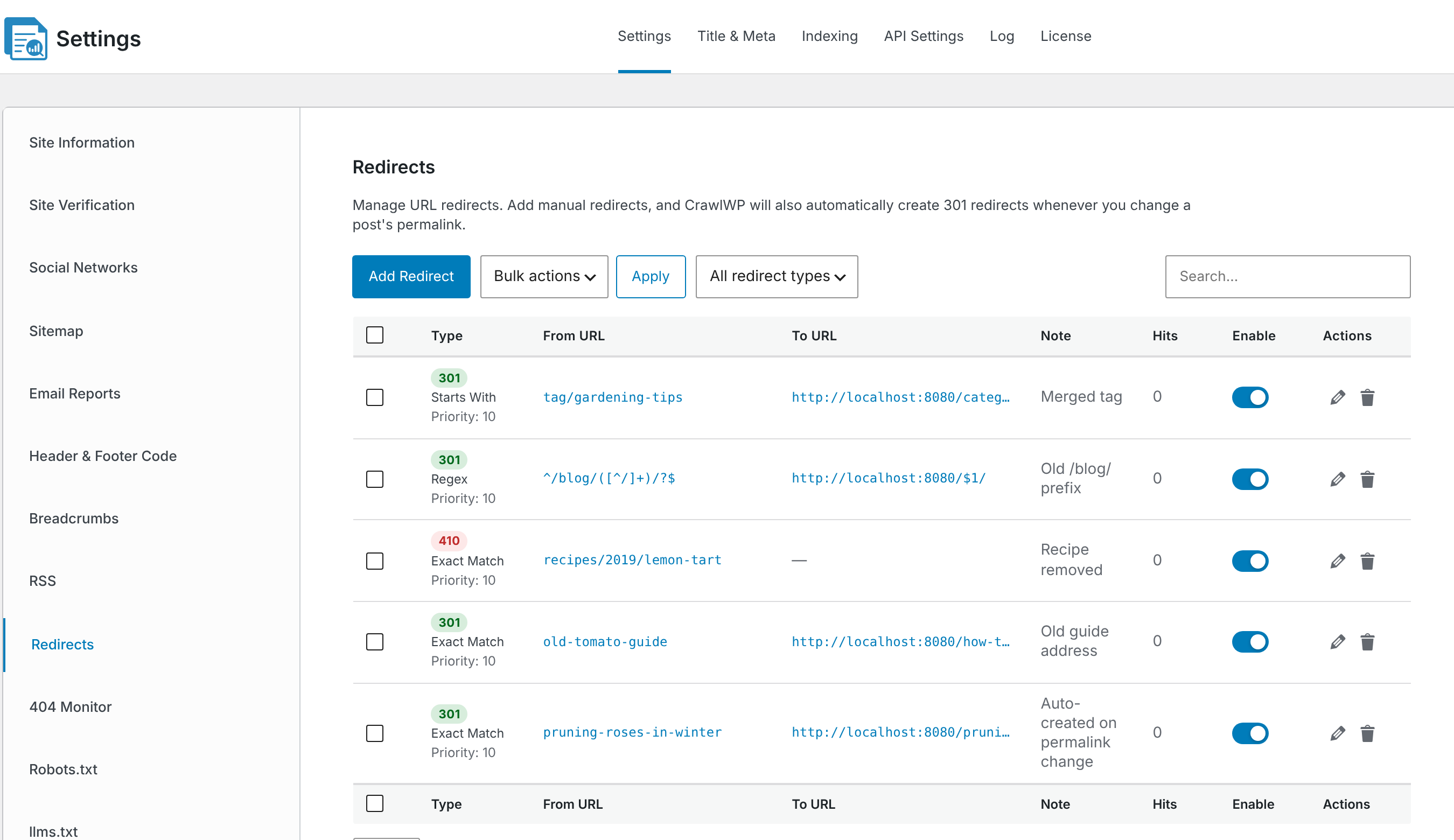
The WordPress redirect rule starts working immediately after you save it. You can see it in the redirects table along with its redirect type, source and destination URLs, note, and hit count.
Which redirect type should you use?
| Type | Use it when |
|---|---|
| 301 Moved Permanently | The old URL has been replaced permanently. This is the right choice for most page moves because search engines can transfer the old URL’s ranking signals to the new one. |
| 302 Found (Temporary) | The content has been moved for a short period, and you expect the original URL to be used again, such as during temporary maintenance. |
| 307 Temporary Redirect | You need a temporary redirect that preserves the original request method. This can matter when the original request contains submitted form data. |
| 410 Content Deleted | The page has been intentionally removed and there is no replacement page. A 410 tells search engines that the content is gone rather than temporarily unavailable. |
| 451 Content Unavailable for Legal Reasons | The resource cannot be served because it has been removed or blocked for legal reasons. |
410 and 451 redirects do not have a To URL because they do not send visitors to another WordPress page. Instead, visitors receive a brief message explaining that the content has been removed or cannot be accessed.
How Exact Match works for Redirect Rules
When Exact Match is selected, CrawlWP compares the requested URL with the value entered in From URL. The comparison ignores two differences:
- Capital letters versus lowercase letters. For example,
/Old-Page/and/old-page/are treated as the same address. - A slash at the beginning or end of the path. Therefore,
/old-pageand/old-page/match the same redirect.
Other redirect options
- Priority: Exact matches take precedence over other matching rules. When multiple non-exact redirect rules could handle the same URL, CrawlWP uses the rule with the smallest priority number first. New redirects use 10 by default. You only need to adjust this when rules overlap.
- Allow redirecting to an external site: Enable this when the destination belongs to another domain. With the option disabled, CrawlWP will not send visitors to external websites.
- Ignore query string parameters: This is enabled by default. Parameters after the
?, such as?utm_source=newsletter, are ignored when matching and are not added to the destination URL. Disable this option when you want the query string passed through. - Enable: Temporarily stop a redirect from running without removing the rule from CrawlWP.
Edit, turn off, or remove a redirect
- Use the pencil icon to modify an existing redirect. Use the bin icon when you want to delete it.
- The Enable switch in the redirects list lets you activate or deactivate an individual rule.
- For multiple redirects, select their checkboxes, choose Enable, Disable, or Delete from Bulk actions, and then click Apply.
- Use the search field or the All redirect types filter to locate a particular rule.
Troubleshooting
“A redirect for this From URL already exists.” CrawlWP allows only one redirect for a given source URL. Open the existing rule and update it instead of creating another one.
“The From and To URLs resolve to the same location, which would create a redirect loop.” The destination points back to the same location as the source. Review the To URL and change it to a different destination.
“This redirect would create a loop” or “a chain longer than” a number of hops. Another redirect is already being applied to the destination. Point this rule straight to the final URL instead of sending visitors through another redirect.
“To URL must be a site-relative path starting with “/” or an absolute http(s) URL.” The destination is not in a format CrawlWP accepts. Use a site path such as /new-page/ or a full http:// or https:// URL. Addresses beginning with // or using another protocol are not accepted.
A redirect to another domain is not working. Enable Allow redirecting to an external site and make sure the destination includes https://.
The visitor is sent to an unexpected path on your own website. The external destination was probably entered without https://, causing CrawlWP to interpret it as a local path. Edit the rule and enter the complete external URL.
The original page still appears. A cache may be serving a stored copy of the page instead of allowing the request to reach WordPress. Clear the cache in your caching plugin, hosting environment, or CDN and test the URL again.
The redirect works in one browser but not another. Browsers can remember permanent redirects such as 301s. Try the URL in a private or incognito window to test it without the existing browser cache.