
Changing the URL of a published WordPress post or page can leave old links pointing to a 404 error. CrawlWP handles this automatically by creating a redirect from the previous post URL to the new one, helping visitors and search engines reach the updated page.
What happens when a permalink changes
When you change the URL of an existing published post, page, or other public post type item in WordPress, CrawlWP automatically takes care of the old URL. It:
- Adds a 301 Moved Permanently redirect that sends the old URL to the new URL.
- Marks the redirect with the note Auto-created on permalink change so you can identify it later.
You do not need to enable a setting for this feature. The automatic redirect is available whenever CrawlWP is active.
To find an automatically created redirect, go to CrawlWP > Settings, open Redirects, and search for part of the previous URL. You can also look through the list for the Auto-created on permalink change note.
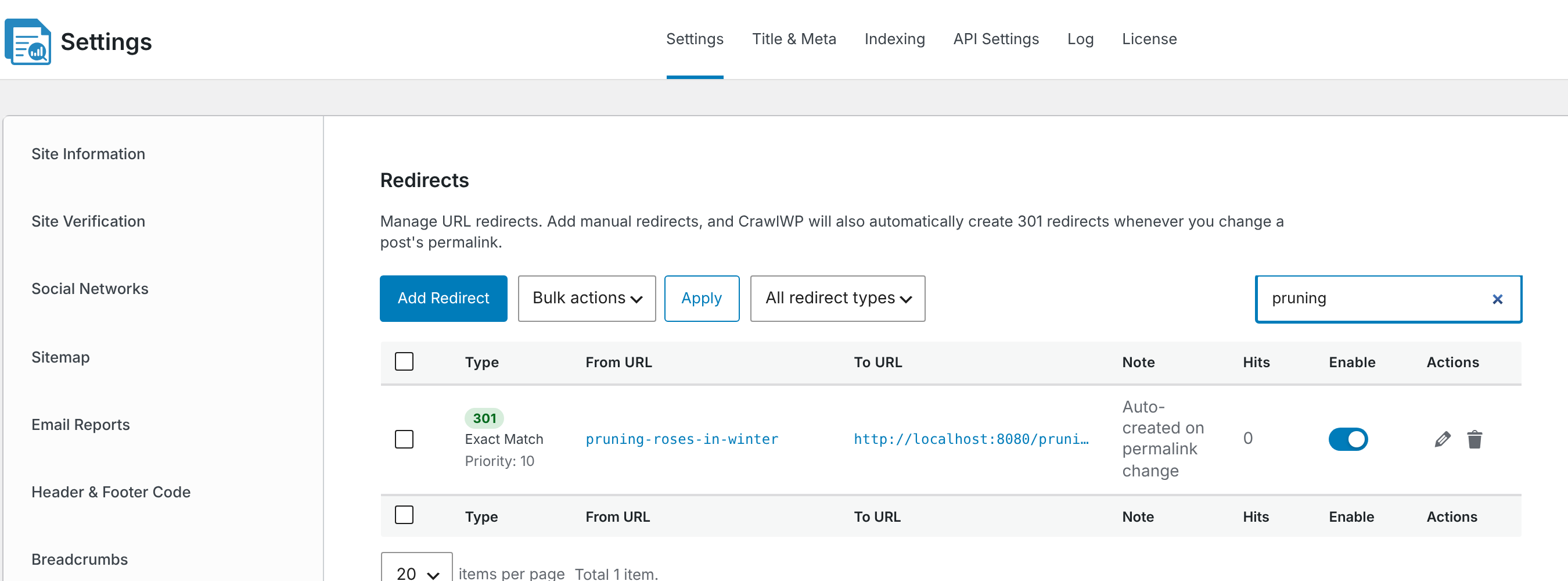
When CrawlWP creates the redirect
CrawlWP creates an automatic redirect when all of the following are true:
- The post or page was already published before you changed its URL and remains published afterward.
- The item uses a public post type.
- The permalink has actually changed.
Changing the URL of a draft, scheduled post, or private post does not create a redirect. CrawlWP also doesn’t create one when a post is published for the first time.
What happens after multiple URL changes?
CrawlWP records each change using the URL that was active immediately before the latest change.
- A to B, then B to C. A new redirect from B to C is created, while the original A to B redirect remains. This means someone visiting A will go through B before reaching C. To avoid the extra hop, open the redirect from A in Redirects and change its To URL to C.
- A to B, then back to A. CrawlWP removes the A to B redirect because A is live again, then creates a new redirect that sends B back to A.
What if you change the site’s permalink structure?
Automatic redirects are designed for URL changes to individual pieces of content. They do not automatically create redirects when you change the site’s entire permalink structure under Settings > Permalinks.
For example, changing URLs from /2026/10/post-name/ to /post-name/ requires a redirect rule that covers the old URL pattern. You can create one with a regex redirect. See Using regex and wildcard redirect matching for more information.
Troubleshooting automatic redirects
CrawlWP did not create a redirect. Make sure the content was published before the URL was changed and is still published afterward. A permalink change made while the content is still a draft will not trigger an automatic redirect.
The old URL still returns a 404. Your cache may still be serving an older response. Clear the cache in your WordPress caching plugin, hosting account, or CDN, then test the old URL again in a private browser window.
You do not want the redirect. Open CrawlWP > Settings > Redirects and delete it. Removing the redirect only removes the redirect rule; it does not undo or modify the permalink change.