
Sometimes you need a single redirect rule to handle a whole group of old URLs instead of creating a separate rule for every WordPress page. This is useful when you reorganize a section of your website, rename a group of pages, or change a URL pattern. CrawlWP SEO plugin lets you do this with Contains, Starts With, Ends With, and Regex matching.
In the Contains, Starts With and Ends With match types, a * is treated as an ordinary character, not a wildcard. For example, Starts With /blog/* only matches addresses that really contain /blog/*. To match everything under /blog/, use Starts With /blog/, or a Regex pattern such as ^/blog/.*. In a regular expression, .* means “any characters”.
Select the right match type
When creating or editing a redirect in WordPress using CrawlWP, use the match type selector beside the From URL field.
| Match type | Matches an address that | Example From URL | Matches |
|---|---|---|---|
| Exact Match | matches the From URL exactly | /old-page/ | /old-page/ only |
| Starts With | has the From URL at the beginning | /tag/gardening-tips | /tag/gardening-tips/, /tag/gardening-tips/page/2/ |
| Ends With | has the From URL at the end | .html | /about.html, /blog/post.html |
| Contains | has the From URL anywhere in the address | lisbon | /lisbon/, /blog/lisbon-food-guide/ |
| Regex | matches the supplied regular expression | ^/blog/([^/]+)/?$ | /blog/lisbon-food-guide/ |
Matching is case-insensitive for all five options. Starts With does not care whether the URL begins with a slash, while Ends With does not care about a trailing slash. For a Starts With rule, it is best to leave the final slash out. For example, /tag/gardening-tips will match both /tag/gardening-tips and /tag/gardening-tips/.
Using Contains, Starts With, or Ends With sends every matching URL to one fixed To URL. When the destination needs to keep part of the original URL, switch to Regex matching.
Create a regex redirect in WordPress
- In WordPress, open CrawlWP > Settings and select Redirects from the left-hand menu under the Settings tab.
- Click Add Redirect to create a new rule.
- Select the redirect Type. In most cases, this will be 301 Moved Permanently.
- For From URL, select Regex and enter the regular expression you want to use.
- Enter the destination under To URL. Use
$1,$2, and other numbered references to insert text captured by groups in your regular expression. - Save the rule by clicking Add Redirect.
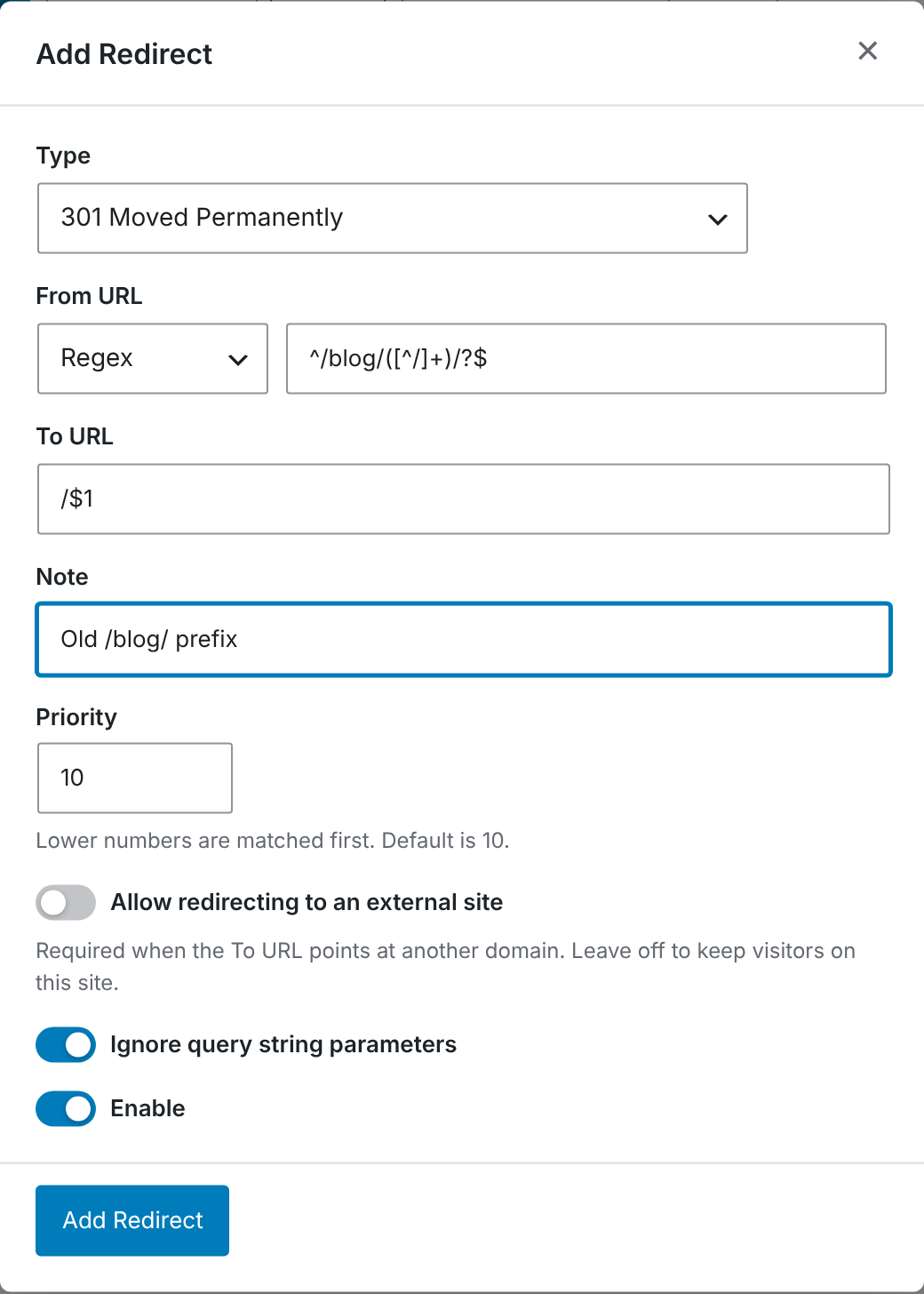
How to write the pattern
- Enter only the regular expression itself. Do not surround it with delimiters such as
/.../or#...#, and do not add flags such asi. CrawlWP handles those for you. - CrawlWP tests the pattern against the URL path, which begins with
/. This is why a path-based expression should normally begin with^/, such as^/blog/. When Ignore query string parameters is disabled, CrawlWP tests the path together with the query string. - Add
^at the beginning and$at the end when the rule should cover the complete path. - Put parentheses around the section you want to capture and reuse in the destination URL.
Practical examples
| Goal | From URL | To URL |
|---|---|---|
Remove a /blog/ prefix from posts | ^/blog/([^/]+)/?$ | /$1 |
| Move a section to a new name | ^/recipes/([^/]+)/?$ | /food/$1 |
| Send every page of an old year archive to one page | ^/2019/.* | /archive/ |
Redirect old .html pages to the same name without .html | ^/(.+)\.html$ | /$1 |
When the destination is another URL on the same WordPress website, CrawlWP normally adds a trailing slash to the To URL. The exception is a destination that ends with a filename, such as guide.pdf. External URLs are kept exactly as entered. Also watch for captured values that already include a slash: if they do, the resulting destination can contain two slashes. The first example avoids that by capturing only the page name with ([^/]+) and making the following slash optional with /?.
Regex pattern restrictions
CrawlWP checks regex rules before saving them to help prevent patterns that could cause performance problems. A pattern is rejected if it:
- contains more than 500 characters
- fails to compile because of invalid syntax
- contains a repeated group that also repeats or contains
|, such as(a+)+or(category|tag)+ - uses repetition values greater than 100 or contains too many quantifiers
There is also a runtime check. If a saved regex takes too long to evaluate against an actual URL, CrawlWP automatically disables the redirect and displays a notice on the Redirects screen with the reason.
How CrawlWP chooses a WordPress redirect rule
CrawlWP gives an exact rule first chance to handle the request. If no Exact Match redirect exists, it evaluates the remaining rules according to Priority, starting with the lowest number. The first rule that matches is used. When several rules could handle the same URL, assign the more specific rule the lower priority number.
Troubleshooting
“Regex pattern is invalid and could not be compiled.” The expression has a syntax problem, such as a missing closing parenthesis or bracket. Check the pattern with a regular expression tester and fix the syntax before saving it again.
“Regex pattern is too complex” followed by an explanation. The expression is too expensive for CrawlWP to process safely. Simplify the pattern based on the message, or divide the job into several simpler redirect rules.
The regex rule never matches. Remember that CrawlWP matches against a path beginning with /. A pattern such as ^blog/ will not match it, while ^/blog/ will.
The destination contains two slashes. Your capture probably includes the final slash from the old URL. Try using ([^/]+)/?$ rather than ending the expression with (.*)$.
A broad redirect is matching URLs that should go somewhere else. Narrow the expression so it identifies the intended URLs more precisely. Adding ^ and $ can help, and you can also give the more specific rule a lower Priority number.
A regex redirect was disabled automatically. Look at the notice on the Redirects screen. CrawlWP disabled the rule because it took too long to run. Simplify the expression, then enable the redirect again.