
Broken URLs can send visitors to pages that no longer exist. CrawlWP’s 404 monitor records these requests, making it easier to identify important broken links in your WordPress website and redirect them to the right page.
Enabling the 404 monitor for WordPress
To start monitoring broken links in WordPress is easy using the 404 monitor in CrawlWP.
- Open CrawlWP > Settings from your WordPress dashboard.
- Select the Settings tab and choose 404 Monitor from the menu on the left.
- Make sure Log 404 errors is enabled. This option is turned on by default.
- Under Keep entries for (days), choose how long CrawlWP should retain each record. Entries whose last hit is older than the selected number of days are removed during the daily cleanup. The default is 30 days. Enter
0when you want entries to remain until you remove them yourself. - Click Save Changes if you updated any of the settings.
View 404 requests of your WordPress sites
To see a list of broken links or 404 requests generated by your WordPress website, follow the guide below.
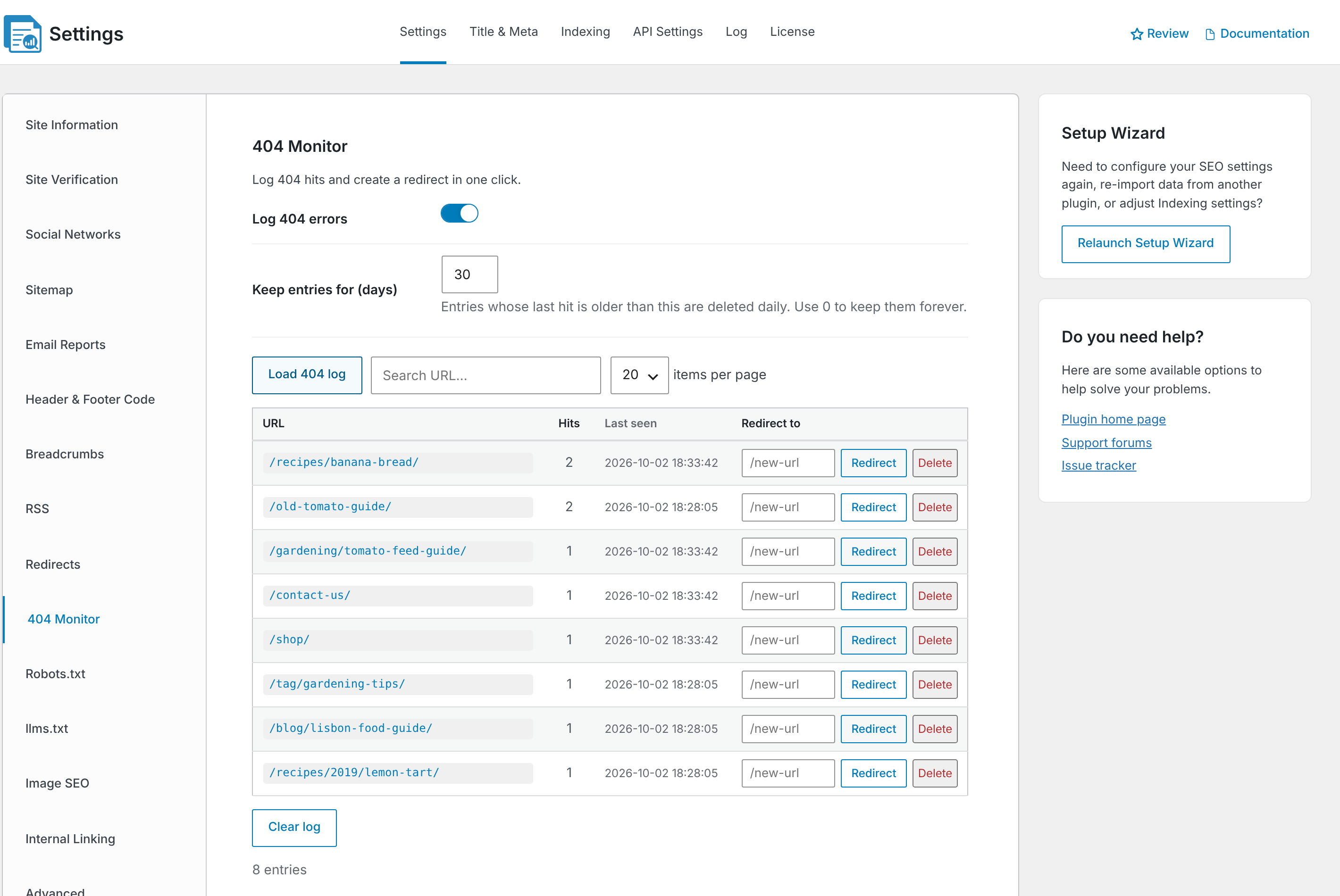
Click Load 404 log to display the recorded errors. Each row includes:
- URL: the address that was requested
- Hits: the total number of requests for that address
- Last seen: the most recent time CrawlWP recorded the request
Start with URLs that have the highest number of hits, as these are usually the most useful to fix. The search field can help you locate a specific URL, while items per page lets you display more entries at once.
Redirect a broken URL
You can find broken URLs in WordPress and instantly create a redirect rule that sends the URL to another page on your website. See the steps below.
- Find the broken URL in the log and enter its replacement in the Redirect to field. For example, you could use
/how-to-grow-tomatoes-in-pots/. - Click Redirect or press Enter.
CrawlWP then creates a 301 redirect using Exact Match. The rule is marked with the note Created from 404 monitor, and the URL is removed from the 404 log. You can make further changes to the redirect later from the Redirects screen.
If the URL should remain unavailable because the content was intentionally removed and there is no suitable replacement, click Delete to remove the entry from the log. For a permanent removal that should also be communicated to search engines, create a 410 Content Deleted redirect for that URL from the Redirects screen. See Creating a redirect (301, 302, 410).
To remove every entry at once, click Clear log and confirm the action.
What CrawlWP records
- CrawlWP records the URL path without the query string. This means requests such as
/missing-page?source=googleand/missing-page?source=newsletterappear as the same 404 entry. - Requests for assets such as images, CSS files, JavaScript files, fonts, videos, and ZIP archives are normally excluded. This prevents missing files from filling the log. A request for one of these files that includes a query string, such as
style.css?ver=1.2, is still recorded. - The monitor stores up to 10,000 URLs. During the daily cleanup, it removes older entries when the limit is exceeded.
Which 404 errors deserve attention?
A 404 response is not automatically a problem. Some URLs should be fixed, while others can safely be ignored.
- Consider fixing: URLs from pages you moved or renamed, broken links pointing from other websites, and incorrect links published somewhere on your own site.
- Usually ignore or remove: suspicious requests generated by bots looking for vulnerable files, such as
/wp-login.php.bakor/.env, and URLs for content that never existed on your website.
When you create a redirect, send visitors to the page that is the closest replacement for the old content. Avoid redirecting every missing URL to your homepage, as this does not provide a useful replacement and can still be treated as a soft 404 by search engines.
Troubleshooting the 404 monitor
The log contains no entries. Confirm that Log 404 errors is enabled and click Load 404 log again. Also check your caching setup. A page cache can sometimes return a 404 response before the request reaches WordPress, which means CrawlWP cannot record it.
A URL appears again after you remove it. Something is still requesting that address. Look for links to the old URL and consider creating a redirect instead of repeatedly deleting the log entry.
“A redirect for this URL already exists.” CrawlWP has already found a redirect for that address. Open Redirects and check that the rule is enabled and that its To URL leads to a working page.